
Secure Shell (SSH) allows you to securely access your server’s command-line interface. Follow the steps below to connect to your server via SSH.
This guide applies only to HostFlare’s DirectAdmin Panel Cloud Hosting. If you’re using a different hosting provider, the steps will be similar, but you’ll need to contact your provider to get the server hostname.
Step 1: Generate an SSH Key (Optional but Recommended)
Before connecting, it is advisable to generate an SSH key from your hosting control panel. This enhances security and eliminates the need to enter your password repeatedly.
- Log in to your hosting control panel.
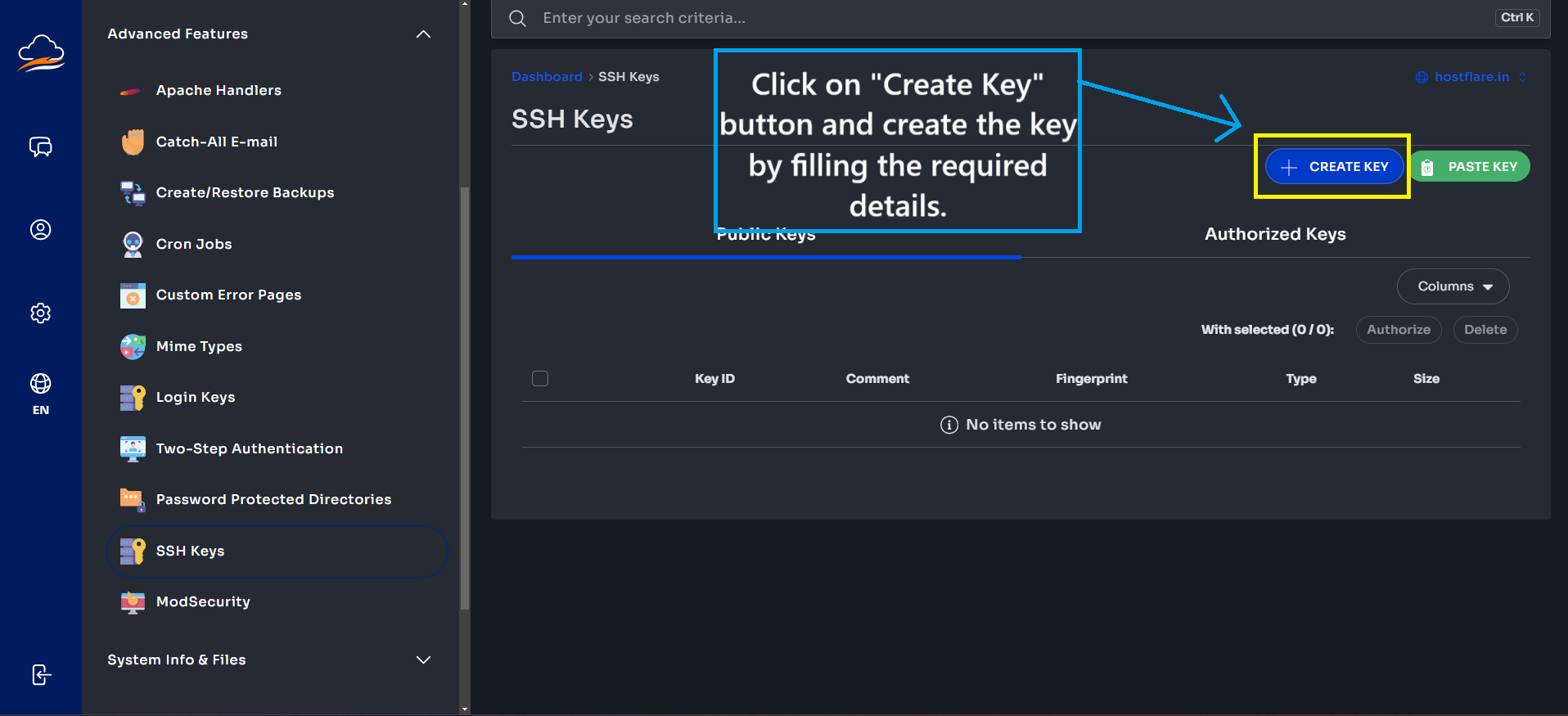
- Navigate to the SSH Key Management section.
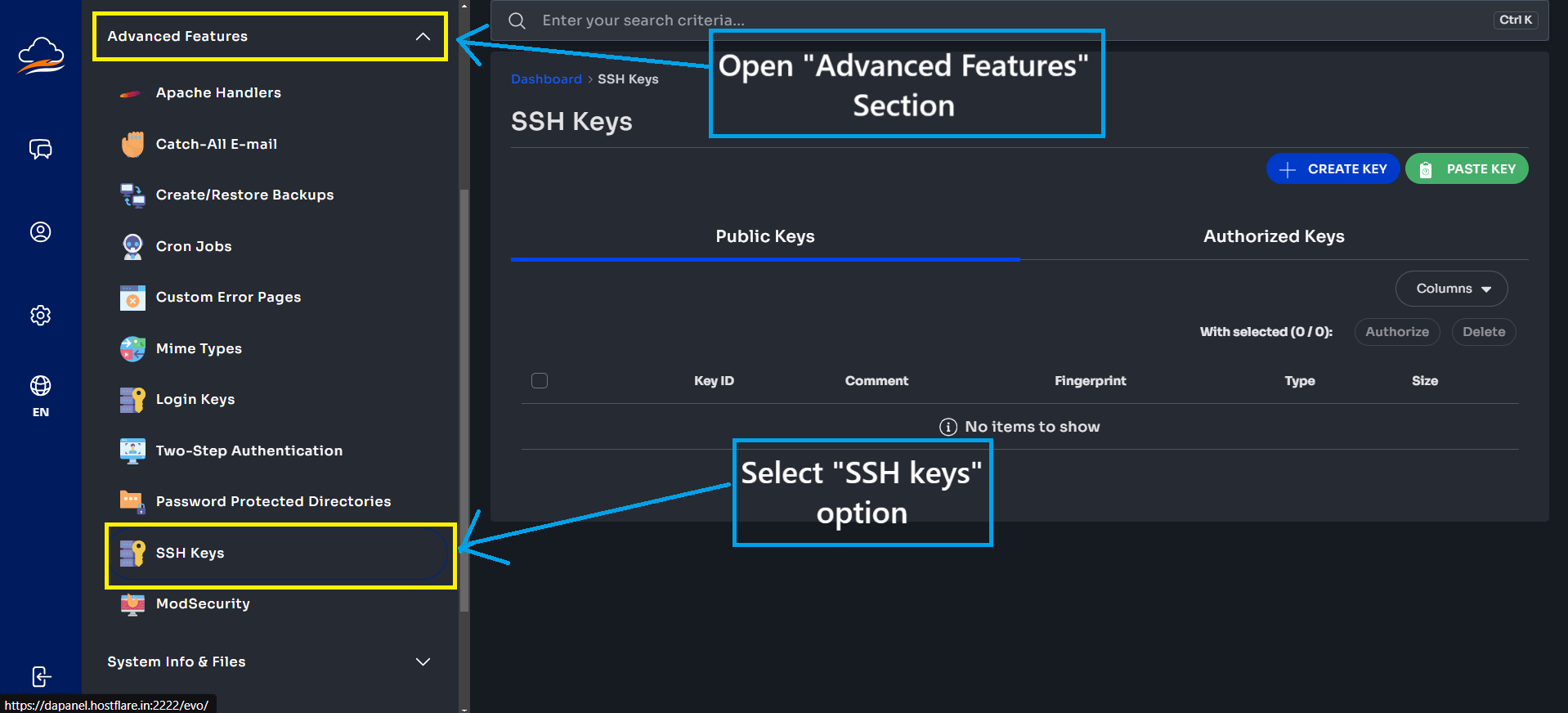
3.Generate a new SSH key by filling in the required details and save the private key securely.
Step 2: Open Command Prompt or Terminal
To connect to your server, you will need to use a command-line interface:
- Windows Users: Open Command Prompt (cmd) or use PowerShell.
- Mac/Linux Users: Open the Terminal application.
Step 3: Connect to Your Server via SSH
To establish an SSH connection, enter the following command in your terminal:
ssh username@dapanel.hostflare.in -p 53667
Change “username” to your hosting server username. You can find your hosting username in the “ACCOUNT INFORMATION” email sent by us.
Example:
If your username is webadmin, your command would be:
ssh webadmin@dapanel.hostflare.in -p 53667
Step 4: Enter Your Password
- When prompted, enter your control panel password.
- If you have set up an SSH key, authentication will happen automatically (sometime it may still asks for a password, so enter it if required).
Once authenticated, you will have full SSH access to your server.
You are now ready to manage your server via SSH!
Troubleshooting Tips
- Ensure your SSH key is correctly added (if applicable).
- Verify that you are using the correct SSH port (53667).
- Make sure your username is correct.
If you’re a HostFlare user and need further assistance, please contact our support team — we’ll set it up for you.
Thanks for reading! If you found this blog helpful, feel free to share it with your developer friends — it will help them access their cloud hosting server via SSH.